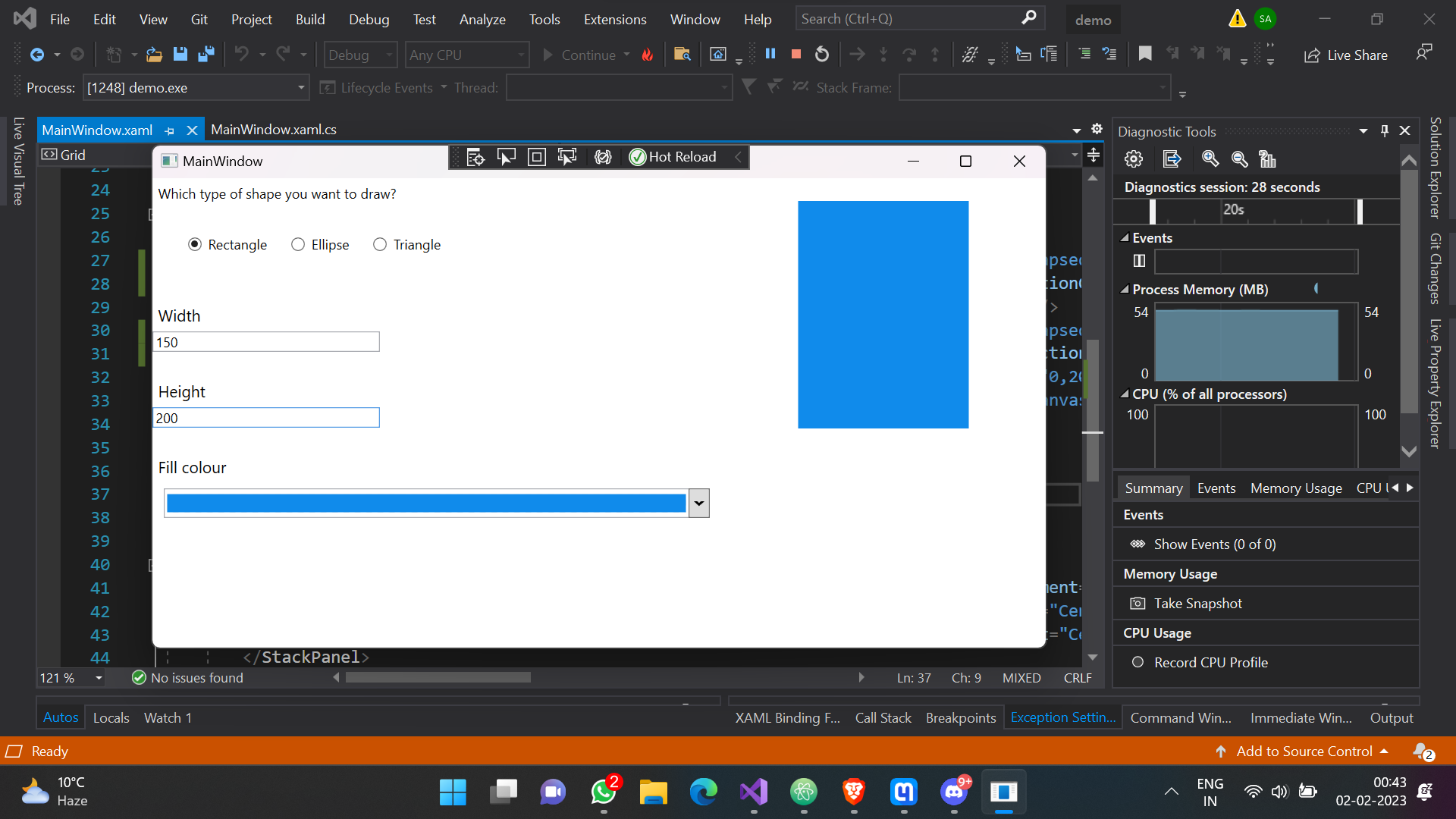
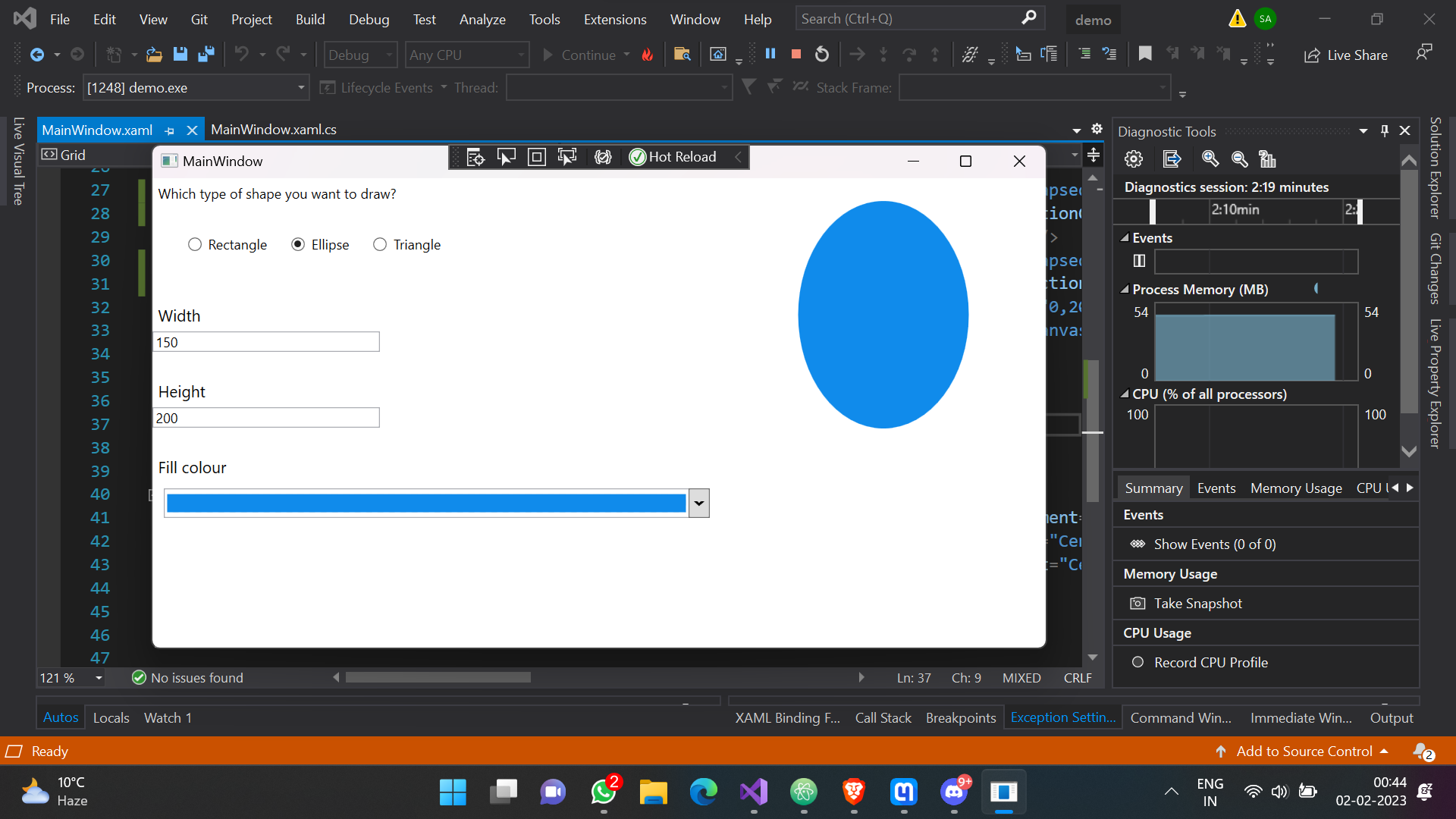
Drawing shapes
STEP 1 : Setting Up
- Install Visual Studio 2019 with tools and feautures of C#.
- Create a new project and select project template as WPF App(.Net Framework)

- Enter a name for application and create
- Go to Project >> Add References >> Search: System Drawing ; Install System Drawing.
- Go to Tools >> NuGet Package Manager >> Manage Packages... >>Search for toolkit ; install Extended WPF Toolkit.
STEP 2 : MainWindow.xaml
In this we make layout for elements and identufy all the window elements ( radiobutton , textbox etc) we need in our app and location where to place them.
As we have to make an app for drawing shapes (triangle, rectangle, circle) with custom parameters.
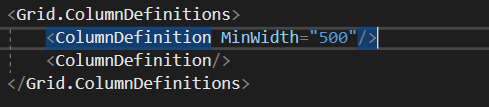
- I used two column grid 1:1 in ratio . First column consist of radiobuttons , labels and textboxes and second half is for drawing shape.
- Make three radiobuttons and name them as ellipse , rectangle , triangle when will click on any radiobutton some function gets execute to set their visibility

- Make two textboxes labeled with height and width to get parameters for height, width of the choosen shape.

STEP 3: MainWindow.xaml.cs
- Create a function ShapeRadios_Click which will execute when will click on any radiobutton , It sets visibility of current selected shape and collapse others.
private void ShapeRadios_Click(object sender, RoutedEventArgs e) { RectangleShape.Visibility = Visibility.Collapsed; EllipseShape.Visibility = Visibility.Collapsed; TriangleShape.Visibility = Visibility.Collapsed; switch (((RadioButton)sender).Name) { case "RectangleRadio": RectangleShape.Visibility = Visibility.Visible; CurrentShape = "Rectangle"; break; case "EllipseRadio": EllipseShape.Visibility = Visibility.Visible; CurrentShape = "Ellipse"; break; case "TriangleRadio": TriangleShape.Visibility = Visibility.Visible; CurrentShape = "Triangle"; break; default: break; } } - Create a function which will render when we will fill width box. This function sets width of shapes
private void WidthBox_SelectionChanged(object sender, RoutedEventArgs e) { double.TryParse(WidthBox.Text, out width); RectangleShape.Width = width; EllipseShape.Width = width; // 100,0 // △ // 0,200 200,200 PointCollection newpoints = new PointCollection(); newpoints.Add(new System.Windows.Point(0, 0)); newpoints.Add(new System.Windows.Point(width/2,height)); newpoints.Add(new System.Windows.Point(width, 0)); TriangleShape.Points = newpoints; } - Create a function which will render when we will fill height box. This function sets height of shapes
private void HeightBox_SelectionChanged(object sender, RoutedEventArgs e)
        {
            double.TryParse(HeightBox.Text, out height);
            RectangleShape.Height = height;
            EllipseShape.Height = height;


            PointCollection newpoints = new PointCollection();


            newpoints.Add(new System.Windows.Point(0, 0));
            newpoints.Add(new System.Windows.Point(width / 2, height));
            newpoints.Add(new System.Windows.Point(width, 0));
            TriangleShape.Points = newpoints;
        }
STEP 4: Testing