What is Git?
Git is a popular version control system.
It is used for:
Tracking code changes
Tracking who made changes
Coding collaboration
Working with Git
- Initialize Git on a folder, making it a Repository
- Git now creates a hidden folder to keep track of changes in that folder
- When a file is changed, added or deleted, it is considered modified
- You select the modified files you want to Stage
- The Staged files are Committed, which prompts Git to store a permanent snapshot of the files
- Git allows you to see the full history of every commit.
- You can revert back to any previous commit.
- Git does not store a separate copy of every file in every commit, but keeps track of changes made in each commit!
Git Getting Started
Git Install
You can download Git for free from the following website: https://www.git-scm.com/
Using Git with Command Line
For Windows, you can use Git bash, which comes included in Git for Windows. For Mac and Linux you can use the built-in terminal.
The first thing we need to do, is to check if Git is properly installed:
simran@LAPTOP-N3JFRHHJ MINGW64 ~
$ git --version
git version 2.39.0.windows.2
Configure Git
Now let Git know who you are.
simran@LAPTOP-N3JFRHHJ MINGW64 ~
$ git config --global user.name "Simran"

simran@LAPTOP-N3JFRHHJ MINGW64 ~
$ git config --global user.email "simranies888@gmail.com"
Creating Git Folder
Now, let’s create a new folder for our project:
simran@LAPTOP-N3JFRHHJ MINGW64 ~
$ mkdir myproject

simran@LAPTOP-N3JFRHHJ MINGW64 ~
$ cd myproject
mkdir makes a new directory.
cd changes the current working directory.
Initialize Git
Once you have navigated to the correct folder, you can initialize Git on that folder:
simran@LAPTOP-N3JFRHHJ MINGW64 ~/myproject
$ git init
Initialized empty Git repository in C:/Users/simra/myproject/.git/
Git Adding New Files
You just created your first local Git repo. But it is empty.
So let’s add some files, or create a new file using your favourite text editor. Then save or move it to the folder you just created.
simran@LAPTOP-N3JFRHHJ MINGW64 ~/myproject (master)
$ ls
index.html
Then we check the Git status and see if it is a part of our repo:
simran@LAPTOP-N3JFRHHJ MINGW64 ~/myproject (master)
$ git status
On branch master

No commits yet

Untracked files:
  (use "git add <file>..." to include in what will be committed)
        index.html

nothing added to commit but untracked files present (use "git add" to track)
Git Staging Environment
As you are working, you may be adding, editing and removing files. But whenever you hit a milestone or finish a part of the work, you should add the files to a Staging Environment.
Staged files are files that are ready to be committed to the repository you are working on. You will learn more about commit shortly.
simran@LAPTOP-N3JFRHHJ MINGW64 ~/myproject (master)
$ git add index.html

simran@LAPTOP-N3JFRHHJ MINGW64 ~/myproject (master)
$ git status
On branch master

No commits yet

Changes to be committed:
  (use "git rm --cached <file>..." to unstage)
        new file:   index.html
You can also stage more than one file at a time. Let’s add 2 more files to our working folder.
simran@LAPTOP-N3JFRHHJ MINGW64 ~/myproject (master)
$ git add .

simran@LAPTOP-N3JFRHHJ MINGW64 ~/myproject (master)
$ git status
On branch master

No commits yet

Changes to be committed:
  (use "git rm --cached <file>..." to unstage)
        new file:   README.md
        new file:   index.html
Git Commit
Since we have finished our work, we are ready move from stage to commit for our repo.
Adding commits keep track of our progress and changes as we work. Git considers each commit change point or “save point”. It is a point in the project you can go back to if you find a bug, or want to make a change.
simran@LAPTOP-N3JFRHHJ MINGW64 ~/myproject (master)
$ git commit -m "this is my first commit"
[master (root-commit) de559e0] this is my first commit
 2 files changed, 18 insertions(+)
 create mode 100644 README.md
 create mode 100644 index.html
Git Commit Log
To view the history of commits for a repository, you can use the log command:
simran@LAPTOP-N3JFRHHJ MINGW64 ~/myproject (master)
$ git log
commit de559e08b5754bdf17b511ba1cb9133d16c70296 (HEAD -> master)
Author: Simran <simranies888@gmail.com>
Date:   Thu Feb 23 15:33:21 2023 +0530

    this is my first commit
Git Help
There are a couple of different ways you can use the help command in command line:
- git command -help - See all the available options for the specific command
- git help –all - See all possible commands
Working with Git Branches
In Git, a branch is a new/separate version of the main repository.
Let’s say you have a large project, and you need to update the design on it. With Git:
- With a new branch called new-design, edit the code directly without impacting the main branch
- EMERGENCY! There is an unrelated error somewhere else in the project that needs to be fixed ASAP!
- Create a new branch from the main project called small-error-fix
- Fix the unrelated error and merge the small-error-fix branch with the main branch
- You go back to the new-design branch, and finish the work there
- Merge the new-design branch with main (getting alerted to the small error fix that you were missing) Branches allow you to work on different parts of a project without impacting the main branch.
When the work is complete, a branch can be merged with the main project.
New Git Branch
Let add some new features to our index.html page.
We are working in our local repository, and we do not want to disturb or possibly wreck the main project.
So we create a new branch:
simran@LAPTOP-N3JFRHHJ MINGW64 ~/myproject (master)
$ git branch hello
Let’s confirm that we have created a new branch:
simran@LAPTOP-N3JFRHHJ MINGW64 ~/myproject (master)
$ git branch
  hello
* master
checkout is the command used to check out a branch. Moving us from the current branch, to the one specified at the end of the command:
simran@LAPTOP-N3JFRHHJ MINGW64 ~/myproject (master)
$ git checkout hello
Switched to branch 'hello'
Now we have moved our current workspace from the master branch, to the new branch
Open your favourite editor and make some changes.
simran@LAPTOP-N3JFRHHJ MINGW64 ~/myproject (hello)
$ git status
On branch hello
Changes not staged for commit:
  (use "git add <file>..." to update what will be committed)
  (use "git restore <file>..." to discard changes in working directory)
        modified:   index.html

no changes added to commit (use "git add" and/or "git commit -a")

simran@LAPTOP-N3JFRHHJ MINGW64 ~/myproject (hello)
$ git add .

simran@LAPTOP-N3JFRHHJ MINGW64 ~/myproject (hello)
$ git commit -m "some changes of new branch"
[hello 84011e2] some changes of new branch
 1 file changed, 2 insertions(+), 1 deletion(-)
Emergency Branch
Now imagine that we are not yet done with hello-world-images, but we need to fix an error on master.
I don’t want to mess with master directly, and I do not want to mess with hello-world-images, since it is not done yet.
So we create a new branch to deal with the emergency:
simran@LAPTOP-N3JFRHHJ MINGW64 ~/myproject (hello)
$ git checkout -b emergency-fix
Switched to a new branch 'emergency-fix'
Let’s fix our imaginary error. Now after making chnages:
simran@LAPTOP-N3JFRHHJ MINGW64 ~/myproject (emergency-fix)
$ git status
On branch emergency-fix
Changes not staged for commit:
  (use "git add <file>..." to update what will be committed)
  (use "git restore <file>..." to discard changes in working directory)
        modified:   index.html

no changes added to commit (use "git add" and/or "git commit -a")

simran@LAPTOP-N3JFRHHJ MINGW64 ~/myproject (emergency-fix)
$ git add index.html

simran@LAPTOP-N3JFRHHJ MINGW64 ~/myproject (emergency-fix)
$ git commit -m "small error resolved"
[emergency-fix f26339d] small error resolved
 1 file changed, 2 insertions(+), 2 deletions(-)
Git Branch Merge
Merge Branches
We have the emergency fix ready, and so let’s merge the master and emergency-fix branches.
First, we need to change to the master branch:
simran@LAPTOP-N3JFRHHJ MINGW64 ~/myproject (emergency-fix)
$ git checkout master
Switched to branch 'master'

simran@LAPTOP-N3JFRHHJ MINGW64 ~/myproject (master)
$ git merge emergency-fix
Updating de559e0..f26339d
Fast-forward
 index.html | 3 ++-
 1 file changed, 2 insertions(+), 1 deletion(-)

simran@LAPTOP-N3JFRHHJ MINGW64 ~/myproject (master)
$ git branch -d emergency-fix
Deleted branch emergency-fix (was f26339d).
Merge Conflict
Now we can move over to hello and keep working.
simran@LAPTOP-N3JFRHHJ MINGW64 ~/myproject (master)
$ git checkout hello
Switched to branch 'hello'
Now,if we are done with our work here and can stage and commit for this branch:
simran@LAPTOP-N3JFRHHJ MINGW64 ~/myproject (master)
$ git checkout hello
Switched to branch 'hello'

simran@LAPTOP-N3JFRHHJ MINGW64 ~/myproject (hello)
$ git add .

simran@LAPTOP-N3JFRHHJ MINGW64 ~/myproject (hello)
$ git checkout master
error: Your local changes to the following files would be overwritten by checkout:
        index.html
Please commit your changes or stash them before you switch branches.
Aborting

simran@LAPTOP-N3JFRHHJ MINGW64 ~/myproject (hello)
$ git commit -m "added new message"
[hello d891b47] added new message
 1 file changed, 2 insertions(+), 2 deletions(-)

simran@LAPTOP-N3JFRHHJ MINGW64 ~/myproject (hello)
$ git checkout master
Switched to branch 'master'

simran@LAPTOP-N3JFRHHJ MINGW64 ~/myproject (master)
$ git merge hello
Auto-merging index.html
CONFLICT (content): Merge conflict in index.html
Automatic merge failed; fix conflicts and then commit the result.

simran@LAPTOP-N3JFRHHJ MINGW64 ~/myproject (master|MERGING)
$ git status
On branch master
You have unmerged paths.
  (fix conflicts and run "git commit")
  (use "git merge --abort" to abort the merge)

Unmerged paths:
  (use "git add <file>..." to mark resolution)
        both modified:   index.html

no changes added to commit (use "git add" and/or "git commit -a")
This confirms there is a conflict in index.html, but the image files are ready and staged to be committed.
So we need to fix that conflict. Open the file in our editor:

We can see the differences between the versions and edit it like we want.
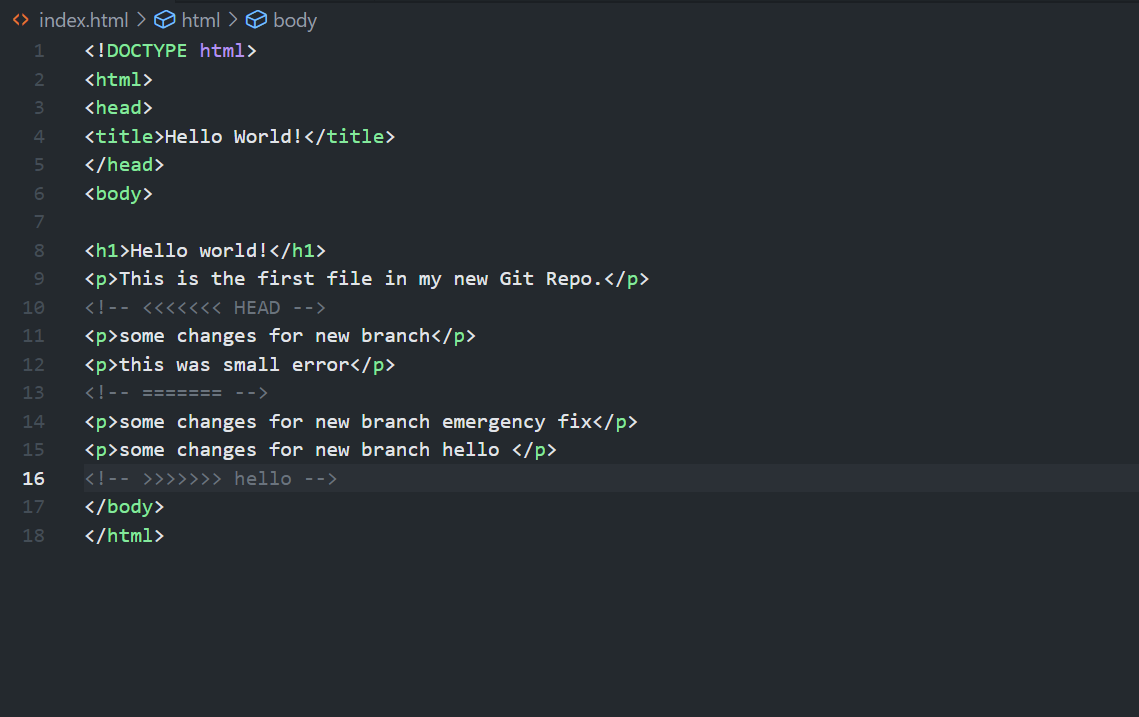
Now we can stage index.html and check the status.
simran@LAPTOP-N3JFRHHJ MINGW64 ~/myproject (master|MERGING)
$ git add index.html

simran@LAPTOP-N3JFRHHJ MINGW64 ~/myproject (master|MERGING)
$ git status
On branch master
All conflicts fixed but you are still merging.
  (use "git commit" to conclude merge)

Changes to be committed:
        modified:   index.html


simran@LAPTOP-N3JFRHHJ MINGW64 ~/myproject (master|MERGING)
$ git commit -m "merged after resolving conflicts"
[master 9b3d6a2] merged after resolving conflicts
And delete the hello-world-images branch:
simran@LAPTOP-N3JFRHHJ MINGW64 ~/myproject (master)
$ git branch -d hello
Deleted branch hello (was d891b47).
Git vs Github
Git GitHub Getting Started
- Go to GitHub and sign up for an account:
- Now that you have made a GitHub account, sign in, and create a new Repo
Push Local Repository to GitHub
Copy the URL of your repository Now paste it in the following command:
simran@LAPTOP-N3JFRHHJ MINGW64 ~/myproject (master)
$ git remote add origin https://github.com/Simran93504/gitTutorial.git
Now we are going to push our master branch to the origin url, and set it as the default remote branch:
simran@LAPTOP-N3JFRHHJ MINGW64 ~/myproject (master)
$ git push --set-upstream origin master
Enumerating objects: 16, done.
Counting objects: 100% (16/16), done.
Delta compression using up to 12 threads
Compressing objects: 100% (16/16), done.
Writing objects: 100% (16/16), 1.64 KiB | 561.00 KiB/s, done.
Total 16 (delta 5), reused 0 (delta 0), pack-reused 0
remote: Resolving deltas: 100% (5/5), done.
To https://github.com/Simran93504/gitTutorial.git
 * [new branch]      master -> master
branch 'master' set up to track 'origin/master'.
Now, go back into GitHub and see that the repository has been updated.
Git Pull from GitHub
Pulling to Keep up-to-date with Changes
When working as a team on a project, it is important that everyone stays up to date.
Any time you start working on a project, you should get the most recent changes to your local copy. With Git, you can do that with pull.
pull is a combination of 2 different commands:
- fetch
- merge
Let’s take a closer look into how fetch, merge, and pull works.
Git Fetch
fetch gets all the change history of a tracked branch/repo.
simran@LAPTOP-N3JFRHHJ MINGW64 ~/myproject (master)
$ git fetch origin
remote: Enumerating objects: 5, done.
remote: Counting objects: 100% (5/5), done.
remote: Compressing objects: 100% (3/3), done.
remote: Total 3 (delta 2), reused 0 (delta 0), pack-reused 0
Unpacking objects: 100% (3/3), 685 bytes | 27.00 KiB/s, done.
From https://github.com/Simran93504/gitTutorial
 9b3d6a2..4480238  master     -> origin/master
Git Merge
merge combines the current branch, with a specified branch.
We have confirmed that the updates are as expected, and we can merge our current branch (master) with origin/master:
simran@LAPTOP-N3JFRHHJ MINGW64 ~/myproject (master)
$ git merge origin/master
Updating e0b6038..d29d69f
Fast-forward
 README.md | 4 +++-
 1 file changed, 3 insertions(+), 1 deletion(-)
Git Pull
pull is a combination of fetch and merge. It is used to pull all
simran@LAPTOP-N3JFRHHJ MINGW64 ~/myproject (master)
$ git pull origin
remote: Enumerating objects: 5, done.
remote: Counting objects: 100% (5/5), done.
remote: Compressing objects: 100% (3/3), done.
remote: Total 3 (delta 1), reused 0 (delta 0), pack-reused 0
Unpacking objects: 100% (3/3), 685 bytes | 27.00 KiB/s, done.
From https://github.com/Simran93504/gitTutorial
   9b3d6a2..4480238  master     -> origin/master
Updating 9b3d6a2..4480238
Fast-forward
 README.md | 4 ++--
 1 file changed, 2 insertions(+), 2 deletions(-)
Git Push to GitHub
Push Changes to GitHub
Let’s try making some changes to our local git and pushing them to GitHub. After making changes commit them:
simran@LAPTOP-N3JFRHHJ MINGW64 ~/myproject (master)
$ git commit -a -m "updated"
[master 1108bf1] updated
 1 file changed, 1 insertion(+)
Now push our changes to our remote origin:
simran@LAPTOP-N3JFRHHJ MINGW64 ~/myproject (master)
$ git push origin
Enumerating objects: 5, done.
Counting objects: 100% (5/5), done.
Delta compression using up to 12 threads
Compressing objects: 100% (3/3), done.
Writing objects: 100% (3/3), 330 bytes | 330.00 KiB/s, done.
Total 3 (delta 1), reused 0 (delta 0), pack-reused 0
remote: Resolving deltas: 100% (1/1), completed with 1 local object.
To https://github.com/Simran93504/gitTutorial.git
   4480238..1108bf1  master -> master
Git GitHub Branch
Create a New Branch on GitHub
On GitHub, access your repository and click the “master” branch button.
There you can create a new Branch. Type in a descriptive name, and click Create branch Start working on an existing file in this branch. Click the “index.html” file and start editing. After you have finished editing the file, you can click the “Preview changes” tab to see the changes you made highlighted. Now commit with a comment.
Git Pull Branch from GitHub
Pulling a Branch from GitHub
Now continue working on our new branch in our local Git.
Lets pull from our GitHub repository again so that our code is up-to-date:
simran@LAPTOP-N3JFRHHJ MINGW64 ~/myproject (master)
$ git pull
remote: Enumerating objects: 5, done.
remote: Counting objects: 100% (5/5), done.
remote: Compressing objects: 100% (3/3), done.
remote: Total 3 (delta 1), reused 0 (delta 0), pack-reused 0
Unpacking objects: 100% (3/3), 716 bytes | 29.00 KiB/s, done.
From https://github.com/Simran93504/gitTutorial
 * [new branch]      forchanges -> origin/forchanges
Already up to date.
Lets check where we are working at the moment:
simran@LAPTOP-N3JFRHHJ MINGW64 ~/myproject (master)
$ git branch
* master
So, we do not have the new branch on our local Git. But we know it is available on GitHub. So we can use the -a option to see all local and remote branches:
simran@LAPTOP-N3JFRHHJ MINGW64 ~/myproject (master)
$ git branch -a
* master
  remotes/origin/forchanges
  remotes/origin/master
Git Push Branch to GitHub
Push a Branch to GitHub
Let’s try to create a new local branch, and push that to Github
simran@LAPTOP-N3JFRHHJ MINGW64 ~/myproject (master)
$ git checkout -b local
Switched to a new branch 'local'
And we make some changes to the README.md file. Just add a new line
simran@LAPTOP-N3JFRHHJ MINGW64 ~/myproject (local)
$ git status
On branch local
Changes not staged for commit:
  (use "git add <file>..." to update what will be committed)
  (use "git restore <file>..." to discard changes in working directory)
        modified:   README.md

no changes added to commit (use "git add" and/or "git commit -a")
simran@LAPTOP-N3JFRHHJ MINGW64 ~/myproject (local)
$ git add README.md
simran@LAPTOP-N3JFRHHJ MINGW64 ~/myproject (local)
$ git commit -m "updated local"
[local e0606b3] updated local
 1 file changed, 1 insertion(+)
simran@LAPTOP-N3JFRHHJ MINGW64 ~/myproject (local)
$ git push origin local
Enumerating objects: 5, done.
Counting objects: 100% (5/5), done.
Delta compression using up to 12 threads
Compressing objects: 100% (3/3), done.
Writing objects: 100% (3/3), 323 bytes | 161.00 KiB/s, done.
Total 3 (delta 1), reused 0 (delta 0), pack-reused 0
remote: Resolving deltas: 100% (1/1), completed with 1 local object.
remote:
remote: Create a pull request for 'local' on GitHub by visiting:
remote:      https://github.com/Simran93504/gitTutorial/pull/new/local
remote:
To https://github.com/Simran93504/gitTutorial.git
 * [new branch]      local -> local
Go to Github, Branches, and confirm that the repository has a new branch:
Git Contribute
Git GitHub Fork
At the heart of Git is collaboration. However, Git does not allow you to add code to someone else’s repository without access rights. A fork is a copy of a repository. This is useful when you want to contribute to someone else’s project or start your own project based on theirs.
fork is not a command in Git, but something offered in GitHub and other repository hosts. Let’s start by logging in to GitHub, and fork a repository.
Git Clone from GitHub
Clone a Fork from GitHub
Now we have our own fork, but only on GitHub. We also want a clone on our local Git to keep working on it.
A clone is a full copy of a repository, including all logging and versions of files.
Move back to the original repository, and click the green “Code” button to get the URL to clone:
simran@LAPTOP-N3JFRHHJ MINGW64 ~
$ git clone https://github.com/hivaibhav123/cv.git
Cloning into 'cv'...
remote: Enumerating objects: 21, done.
remote: Counting objects: 100% (21/21), done.
remote: Compressing objects: 100% (17/17), done.
remote: Total 21 (delta 4), reused 0 (delta 0), pack-reused 0
Receiving objects: 100% (21/21), 598.27 KiB | 470.00 KiB/s, done.
Resolving deltas: 100% (4/4), done.

simran@LAPTOP-N3JFRHHJ MINGW64 ~/contribute
$ ls
cv/

simran@LAPTOP-N3JFRHHJ MINGW64 ~/contribute
$ cd cv

simran@LAPTOP-N3JFRHHJ MINGW64 ~/contribute/cv (main)
$ git status
On branch main
Your branch is up to date with 'origin/main'.

nothing to commit, working tree clean
Configuring Remotes
Basically, we have a full copy of a repository, whose origin we are not allowed to make changes to.
Let’s see how the remotes of this Git is set up:
simran@LAPTOP-N3JFRHHJ MINGW64 ~/contribute/cv (main)
$ git remote -v
origin  https://github.com/hivaibhav123/cv.git (fetch)
origin  https://github.com/hivaibhav123/cv.git (push)
We see that origin is set up to the original “hivaibhav123” repository, we also want to add our own fork. First, we rename the original origin remote:
simran@LAPTOP-N3JFRHHJ MINGW64 ~/contribute/cv (main)
$ git remote rename origin upstream
Renaming remote references: 100% (3/3), done.

simran@LAPTOP-N3JFRHHJ MINGW64 ~/contribute/cv (main)
$ git remote -v
upstream        https://github.com/hivaibhav123/cv.git (fetch)
upstream        https://github.com/hivaibhav123/cv.git (push)
Then fetch the URL of our own fork And add that as origin:
simran@LAPTOP-N3JFRHHJ MINGW64 ~/contribute/cv (main)
$ git remote add origin https://github.com/Simran93504/cv-1.git

simran@LAPTOP-N3JFRHHJ MINGW64 ~/contribute/cv (main)
$ git remote -v
origin  https://github.com/Simran93504/cv-1.git (fetch)
origin  https://github.com/Simran93504/cv-1.git (push)
upstream        https://github.com/hivaibhav123/cv.git (fetch)
upstream        https://github.com/hivaibhav123/cv.git (push)
Now we have 2 remotes:
origin - our own fork, where we have read and write access upstream - the original, where we have read-only access
Git GitHub Send Pull Request
Push Changes to Our GitHub Fork
We have made a lot of changes to our local Git.
simran@LAPTOP-N3JFRHHJ MINGW64 ~/contribute/cv (main)
$ git status
On branch main
Your branch is up to date with 'upstream/main'.

Changes not staged for commit:
  (use "git add <file>..." to update what will be committed)
  (use "git restore <file>..." to discard changes in working directory)
        modified:   index.html

no changes added to commit (use "git add" and/or "git commit -a")

simran@LAPTOP-N3JFRHHJ MINGW64 ~/contribute/cv (main)
$ git add index.html

simran@LAPTOP-N3JFRHHJ MINGW64 ~/contribute/cv (main)
$ git commit -m "contribution"
[main 901e30e] contribution
 1 file changed, 1 insertion(+)
Now we push them to our GitHub fork:
simran@LAPTOP-N3JFRHHJ MINGW64 ~/contribute/cv (main)
$ git push origin
Enumerating objects: 5, done.
Counting objects: 100% (5/5), done.
Delta compression using up to 12 threads
Compressing objects: 100% (3/3), done.
Writing objects: 100% (3/3), 317 bytes | 317.00 KiB/s, done.
Total 3 (delta 2), reused 0 (delta 0), pack-reused 0
remote: Resolving deltas: 100% (2/2), completed with 2 local objects.
To https://github.com/Simran93504/cv-1.git
   ca4f8f0..901e30e  main -> main
Go to GitHub, and we see that the repository has a new commit. And we can send a Pull Request to the original repository Click that and create a pull request
Git Undo
Git Revert
revert is the command we use when we want to take a previous commit and add it as a new commit, keeping the log intact.
Step 1: Find the previous commit:
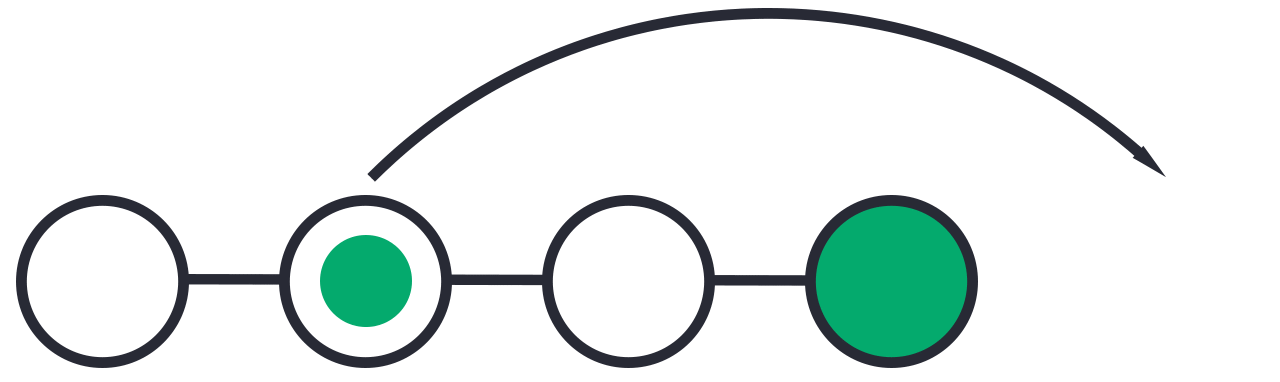 Step 2: Use it to make a new commit:
 Let’s make a new commit
simran@LAPTOP-N3JFRHHJ MINGW64 ~/myproject (local)
$ git commit -m "Just a regular update, definitely no accidents here..."
[master 16a6f19] Just a regular update, definitely no accidents here...
 1 file changed, 0 insertions(+), 0 deletions(-)
## Git Revert Find Commit in Log First thing, we need to find the point we want to return to. To do that, we need to go through the log.
To avoid the very long log list, we are going to use the –oneline option, which gives just one line per commit showing:
simran@LAPTOP-N3JFRHHJ MINGW64 ~/myproject (local)
$ git log --oneline
52418f7 (HEAD -> master) Just a regular update, definitely no accidents here...
9a9add8 (origin/master) Added .gitignore
81912ba Corrected spelling error
dfa79db updated index.html with emergency fix
0312c55 Added image to Hello World
09f4acd Updated index.html with a new line
221ec6e First release of Hello World!
Git Revert HEAD
We revert the latest commit using git revert HEAD (revert the latest change, and then commit), adding the option –no-edit to skip the commit message editor (getting the default revert message):
simran@LAPTOP-N3JFRHHJ MINGW64 ~/myproject (local)
$ git revert HEAD --no-edit
[master e56ba1f] Revert "Just a regular update, definitely no accidents here..."
 Date: Thu Apr 22 10:50:13 2021 +0200
 1 file changed, 0 insertions(+), 0 deletions(-)
## Git Reset reset is the command we use when we want to move the repository back to a previous commit, discarding any changes made after that commit.
Step 1: Find the previous commit:

Step 2: Move the repository back to that step:

Git Reset Find Commit in Log
First thing, we need to find the point we want to return to. To do that, we need to go through the log.
simran@LAPTOP-N3JFRHHJ MINGW64 ~/myproject (local)
$ git commit -m "Just a regular update, definitely no accidents here..."
[master 16a6f19] Just a regular update, definitely no accidents here...
 1 file changed, 0 insertions(+), 0 deletions(-)
## Git Revert Find Commit in Log First thing, we need to find the point we want to return to. To do that, we need to go through the log.
To avoid the very long log list, we are going to use the –oneline option, which gives just one line per commit showing:
simran@LAPTOP-N3JFRHHJ MINGW64 ~/myproject (local)
$ git log --oneline
52418f7 (HEAD -> master) Just a regular update, definitely no accidents here...
9a9add8 (origin/master) Added .gitignore
81912ba Corrected spelling error
dfa79db updated index.html with emergency fix
0312c55 Added image to Hello World
09f4acd Updated index.html with a new line
221ec6e First release of Hello World!
We want to return to the commit: 9a9add8 (origin/master) Added .gitignore, the last one before we started to mess with things.
Git Reset
We reset our repository back to the specific commit using git reset commithash (commithash being the first 7 characters of the commit hash we found in the log):
simran@LAPTOP-N3JFRHHJ MINGW64 ~/myproject (local)
$ git reset 9a9add8
Now let’s check the log again:
simran@LAPTOP-N3JFRHHJ MINGW64 ~/myproject (local)
$ git log --oneline
9a9add8 (origin/master) Added .gitignore
81912ba Corrected spelling error
dfa79db updated index.html with emergency fix
0312c55 Added image to Hello World
09f4acd Updated index.html with a new line
221ec6e First release of Hello World!
Warning: Messing with the commit history of a repository can be dangerous. It is usually ok to make these kinds of changes to your own local repository. However, you should avoid making changes that rewrite history to remote repositories, especially if others are working with them.
Git Amend
Git commit –amend
commit –amend is used to modify the most recent commit. It combines changes in the staging environment with the latest commit, and creates a new commit. This new commit replaces the latest commit entirely.
simran@Explora MINGW64 ~/contribute/cv (main)
$ git commit --amend -m "Added lines to README.md"
[main a983adb] Added lines to README.md
 Date: Fri Feb 24 22:30:48 2023 +0530
 1 file changed, 1 insertion(+)